26.6 New Siterra Preview Notes
These notes describe changes to new Siterra in this release. Review the Siterra Release Notes for other changes to the product in this release.
This automatic upgrade is scheduled for UAT environments on November 19, 2026, and for production environments on December 12, 2026.
These notes are subject to change until the production release.
Key changes
-
The Site Libraries page now has a left navigation pane so you can browse sites, hubs, and libraries faster.
-
Approve, review, and reject schedule tasks without leaving new Siterra.
-
Edit a site library's name and description from the library page.
-
Review, approve, reject, download, send, or delete multiple documents from a library page.
-
Project forms close and the schedule updates right after you save.
Create site libraries in new Siterra
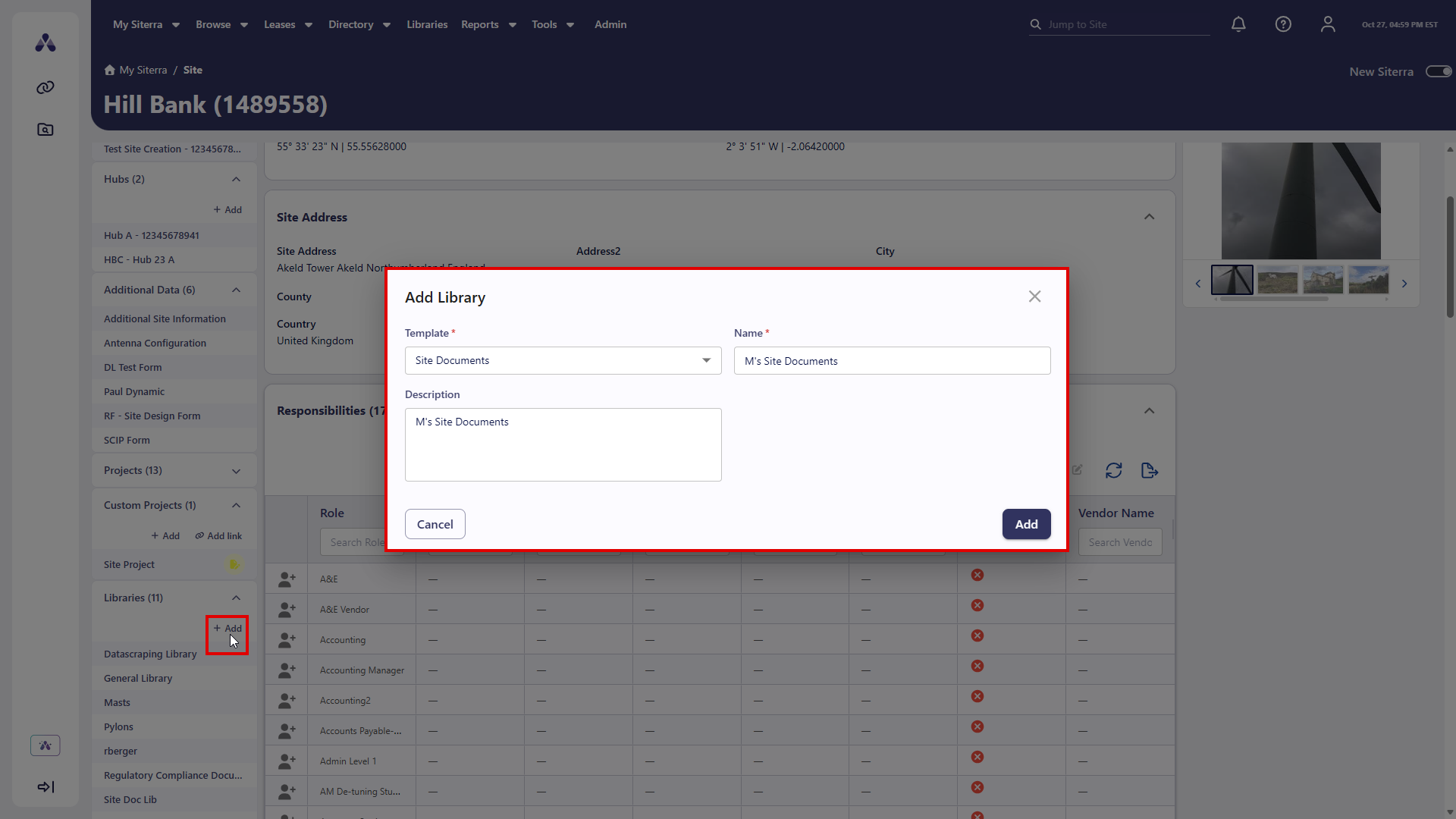
You can add a library without leaving the site, and it links to the site automatically.
-
Open a site's library page.
-
In the navigation pane of a site, expand Libraries.
-
Select + Add to open the Create Library dialog.
-
Select a Template.
-
Enter a Name and Description.
-
Select Add.
The new library appears in the site's library list.
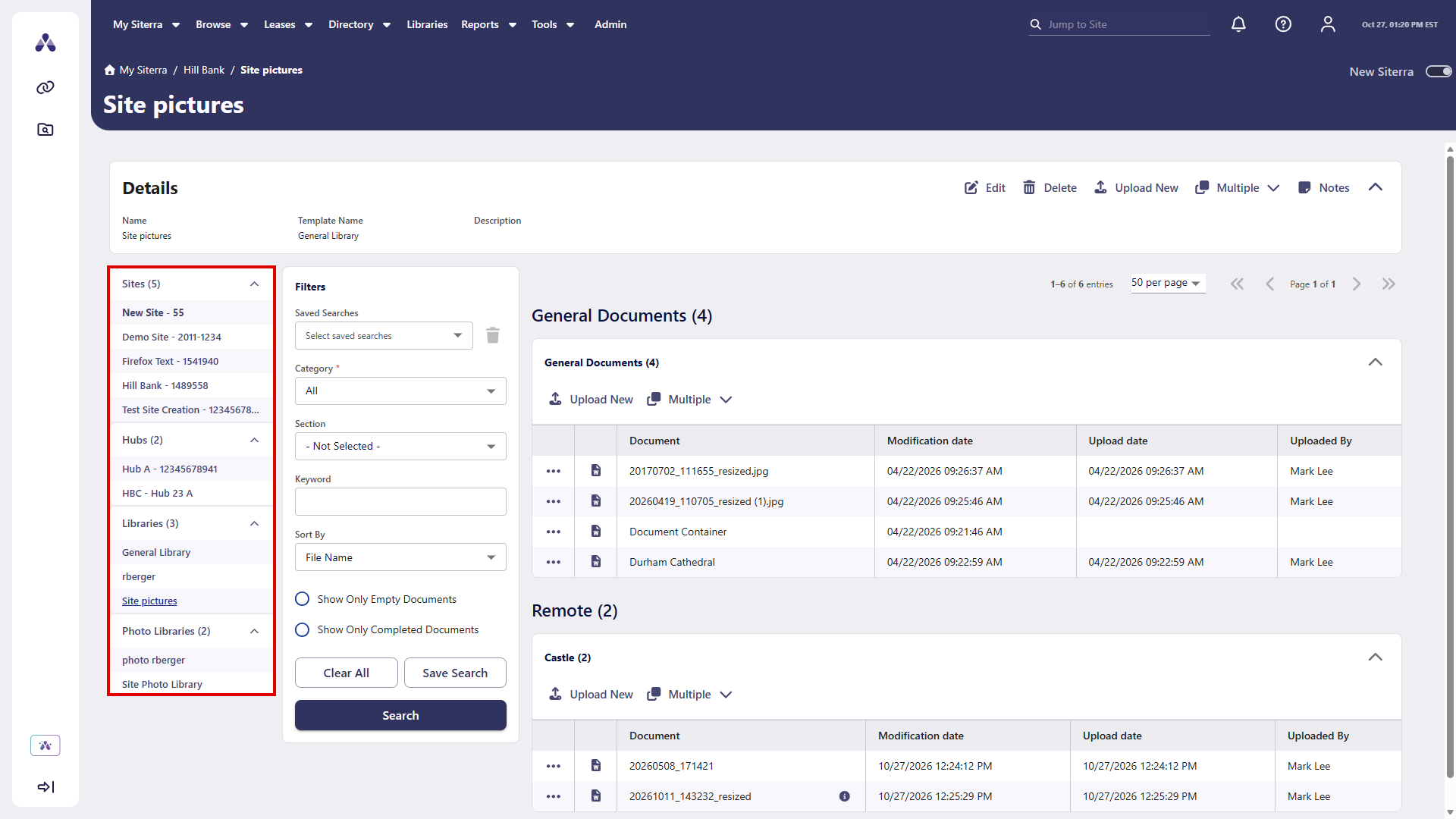
New left navigation on site libraries
The Site Libraries page now has a left navigation pane that looks and works like the navigation on other pages. This helps you browse site libraries faster.
-
Explore sites, hubs, and libraries for the site, with a count for each group. In this release, photo libraries open in classic Siterra.
-
Expand or collapse each group.
-
Select a record to open it.
-
Use Add and Add link where they're available.
Each group shows up to 10 items to keep lists short and easy to scan. If a group has more, select Show all to see every item. Select Show less to go back to the shorter list.
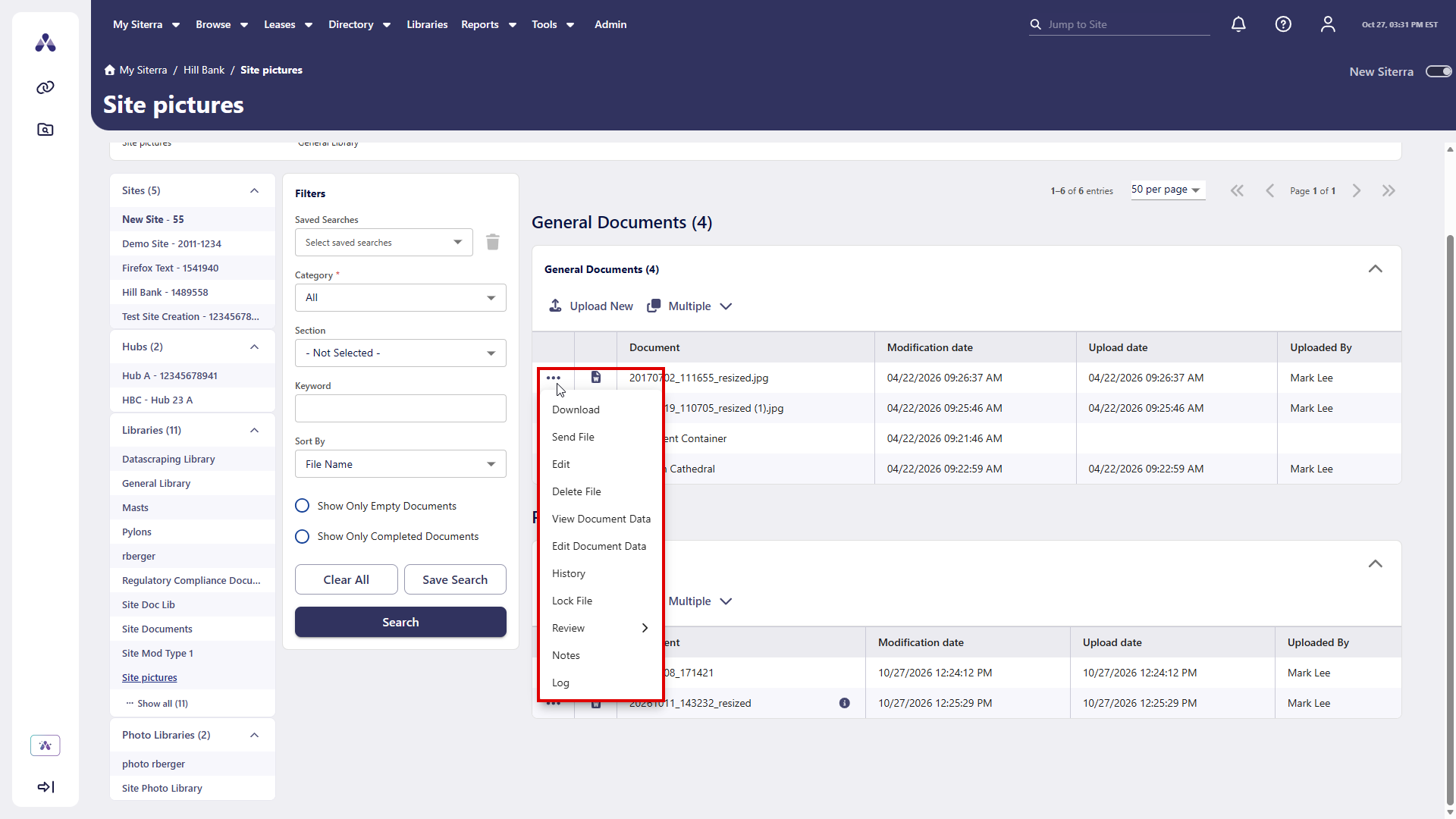
Take action on a single document
You can now work with one document at a time from its row on a library page. You don't need to select it and use a bulk action.
Select the ellipsis ( ) next to the document to reveal the available options.
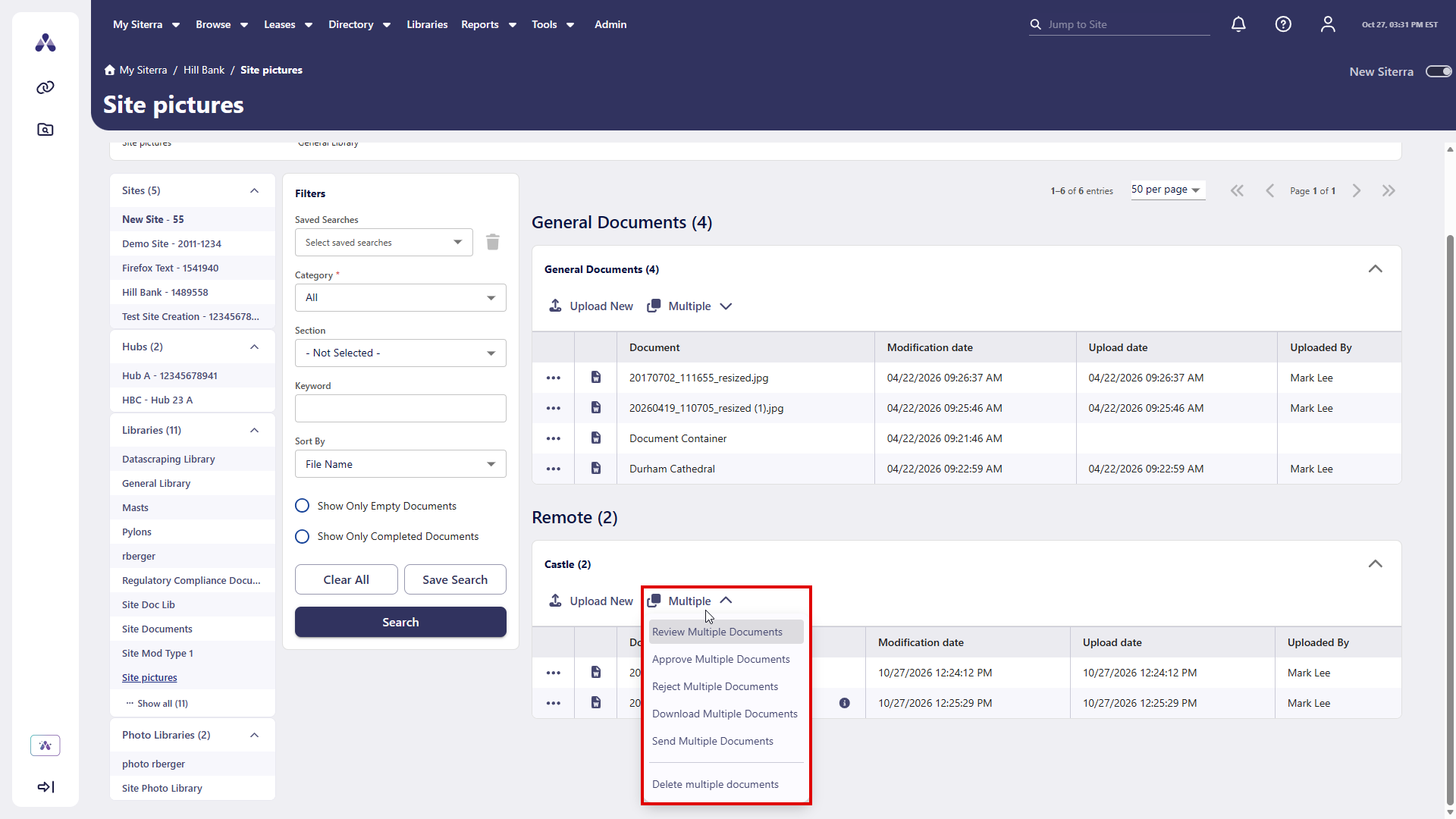
Select Multiple on the page toolbar and on each section's toolbar to review, approve, reject, download, send, or delete several documents at once.
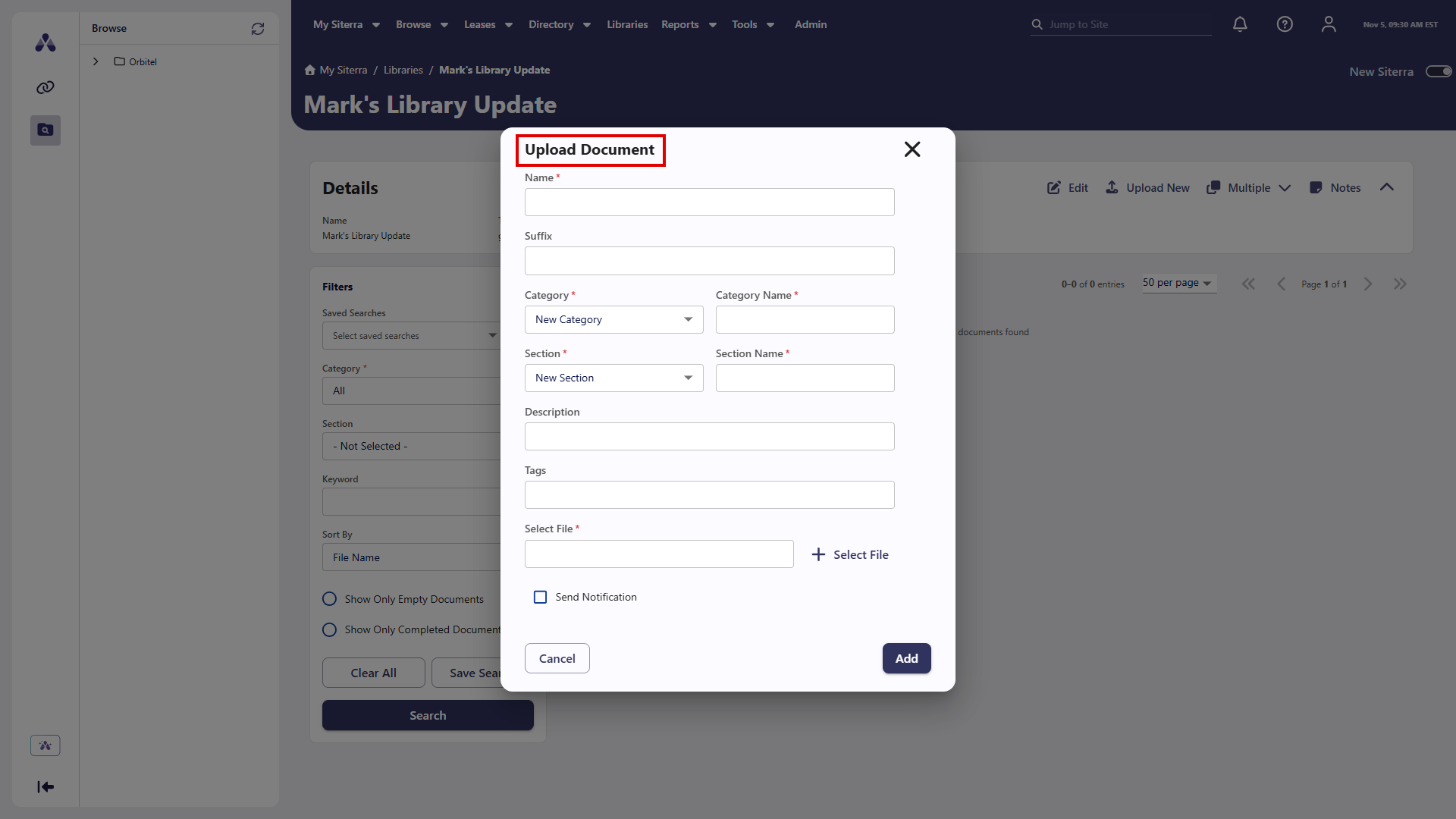
Clearer title for the upload document dialog
The dialog you use to add a document to a library now has the title Upload Document. The new title is short and clear, so you can identify what the dialog does.
The dialog works just as it did before. The fields, buttons, and steps to upload a document haven't changed. Screen readers also read out the new title, so everyone gets the same clear label.
Edit or delete a site library
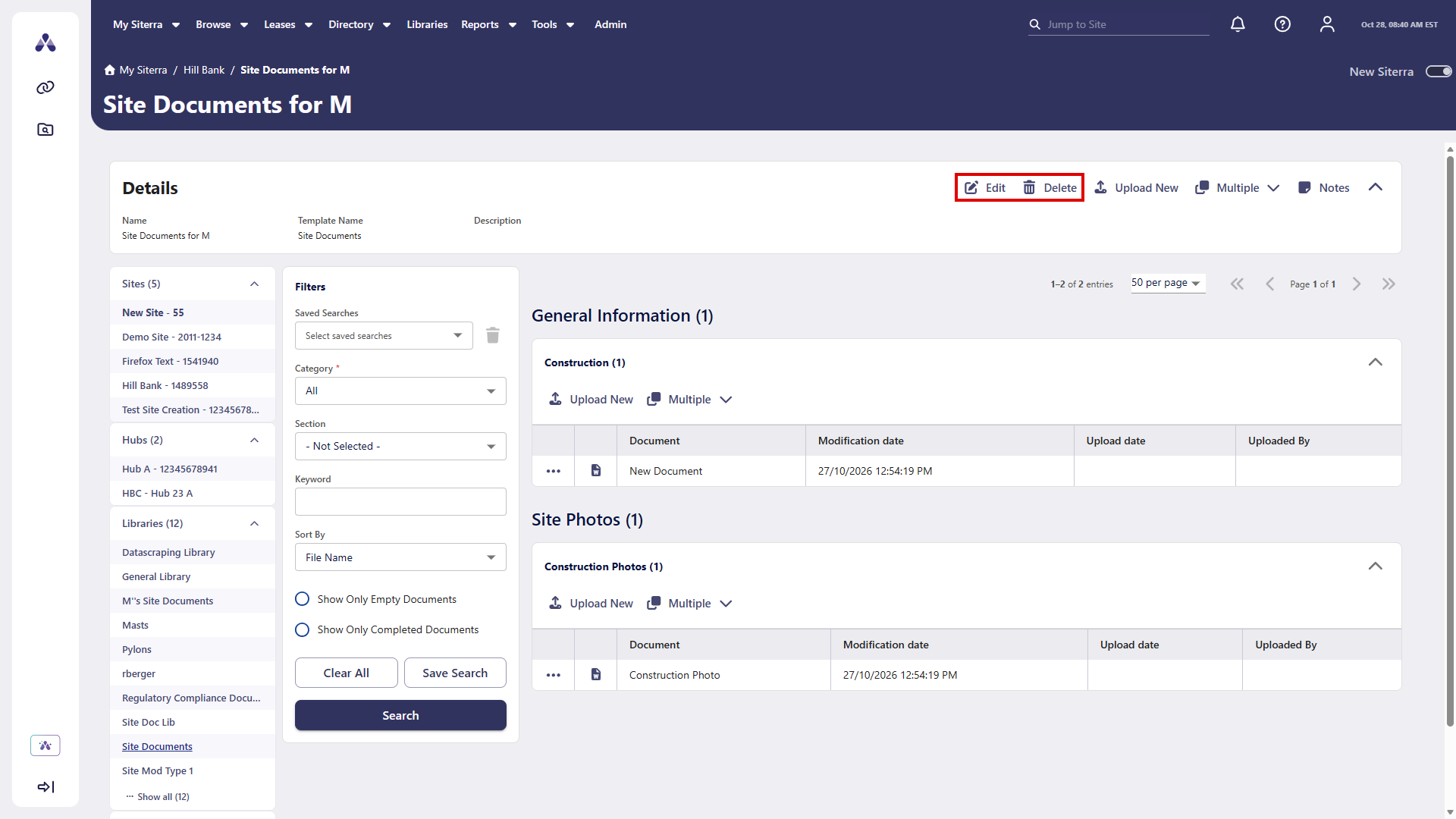
You can now edit or delete a site library from the toolbar on the library page.
-
Select Edit.
-
In the Edit Library dialog, change the Name or Description.
-
Select Save.
If you have permission, you can also delete a site library. Select Delete, and then confirm. This removes the library and all its folders, documents, and photos. You can't undo this action. You can't delete general libraries or project libraries.
Open project pages in new Siterra
Project pages now open in new Siterra. When you select a link to a project, you go straight to the new project page. You can keep working in new Siterra without switching back to classic Siterra.
This works for links to a project from other pages in new Siterra. Your current settings still apply. If you use classic Siterra, project links open there as they did before.
Approve, review, and reject schedule tasks
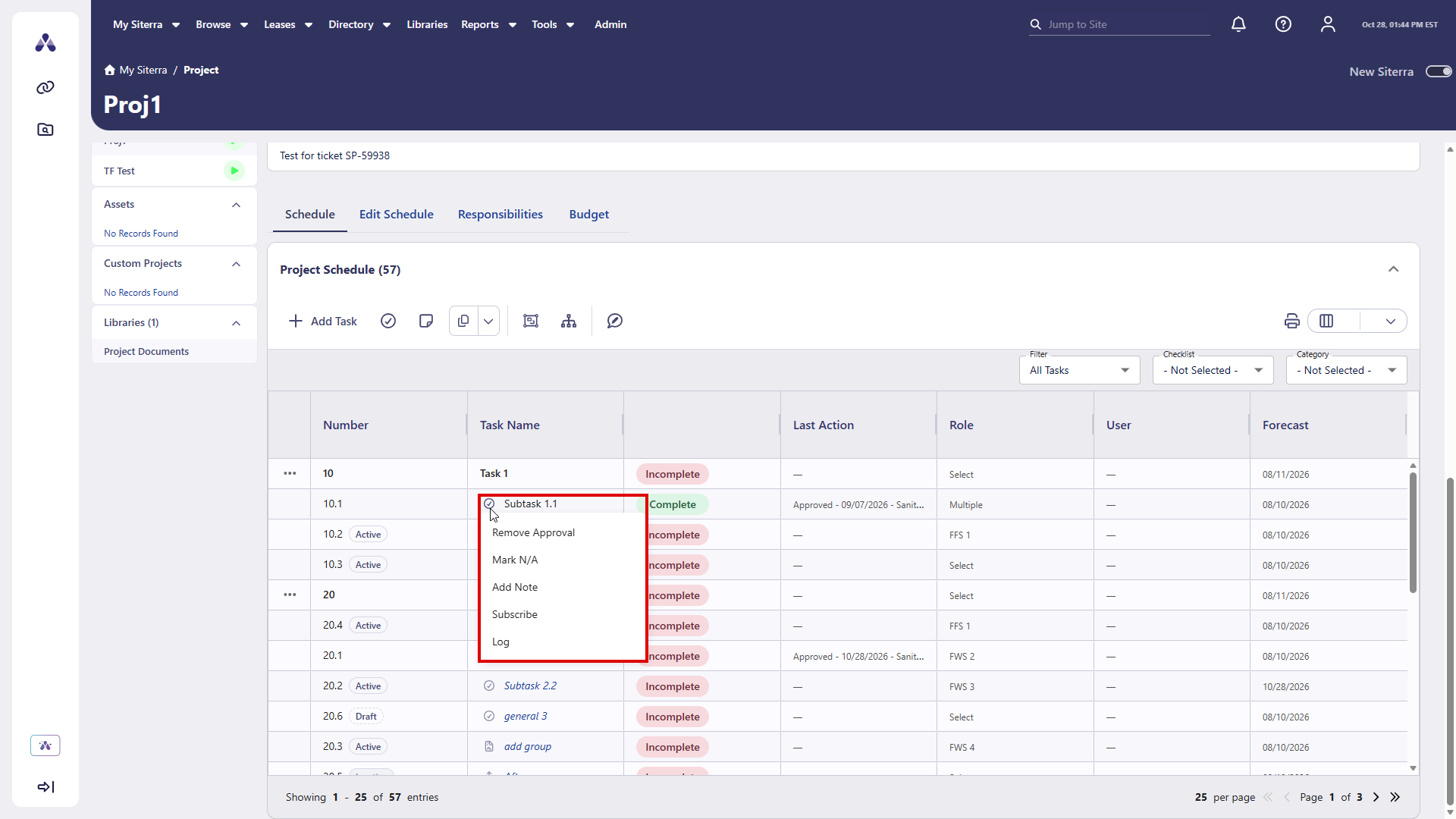
You can now finish more schedule task workflows in new Siterra. On the Schedule tab, open a task's menu to:
-
Approve a task, or remove an approval.
-
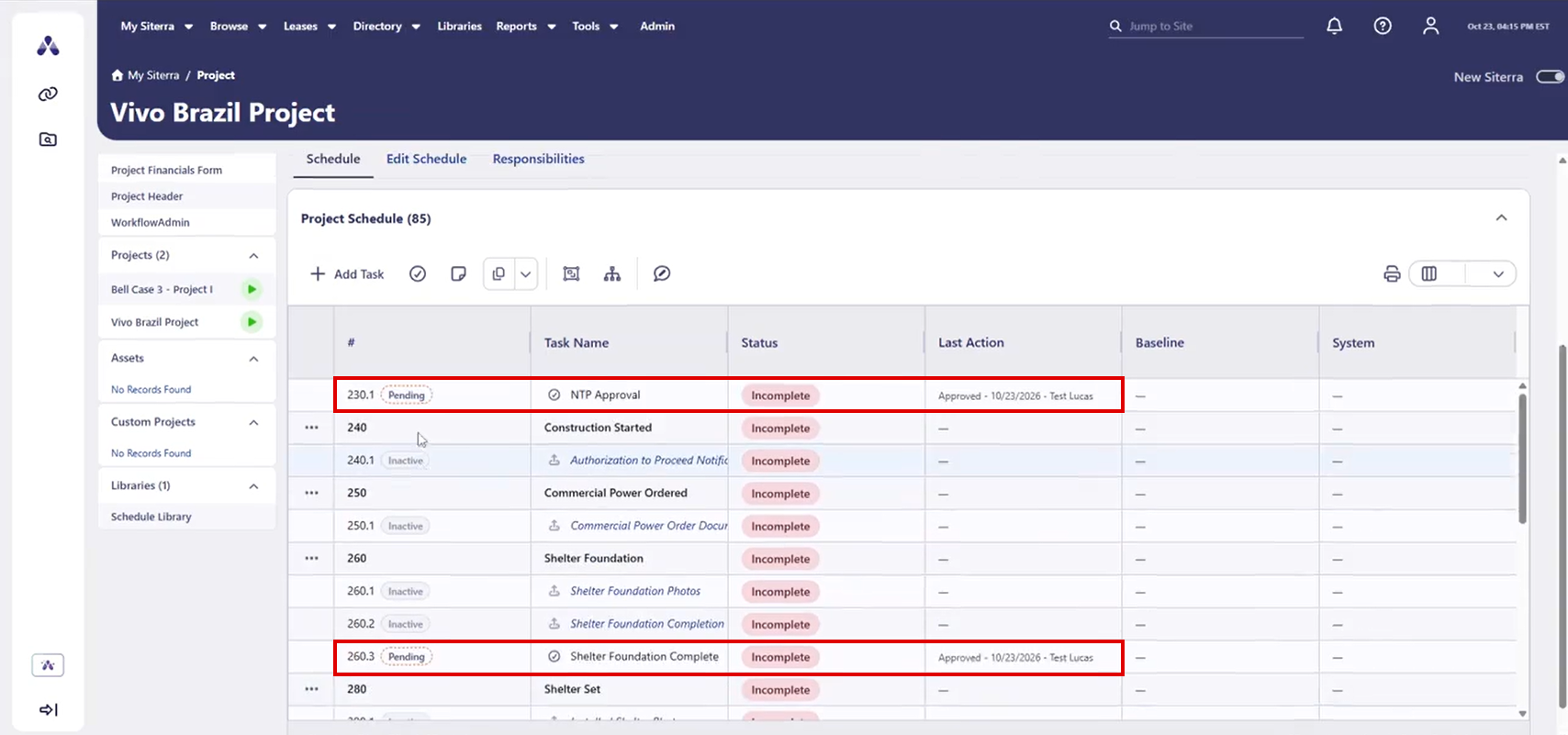
Approve or reject a pending task.
-
Mark a task as reviewed, or remove a review.
-
Reject a task. Choose a reason and, if you want, send an email notice.
The row updates and shows the new status, who made the change, and when. Task names and labels also show each task's state more clearly, such as Pending, Rejected, or Draft.
Options for marking multiple tasks at once open in classic Siterra.
Edit your project schedule
You can now edit a project schedule in new Siterra. On a project, select the Edit Schedule tab to:
-
Change task names, dates, status, and notes in the grid. Siterra checks each entry and shows a message if something needs a fix.
-
Add, insert, or delete tasks from the toolbar.
-
Select Save to keep your changes, or Cancel to undo them.
Your place in the grid and your unsaved edits remain when you switch tabs. If you leave with unsaved changes, Siterra asks if you want to save or discard them.
You need permission to edit the schedule. Without it, the tab opens in read-only mode.
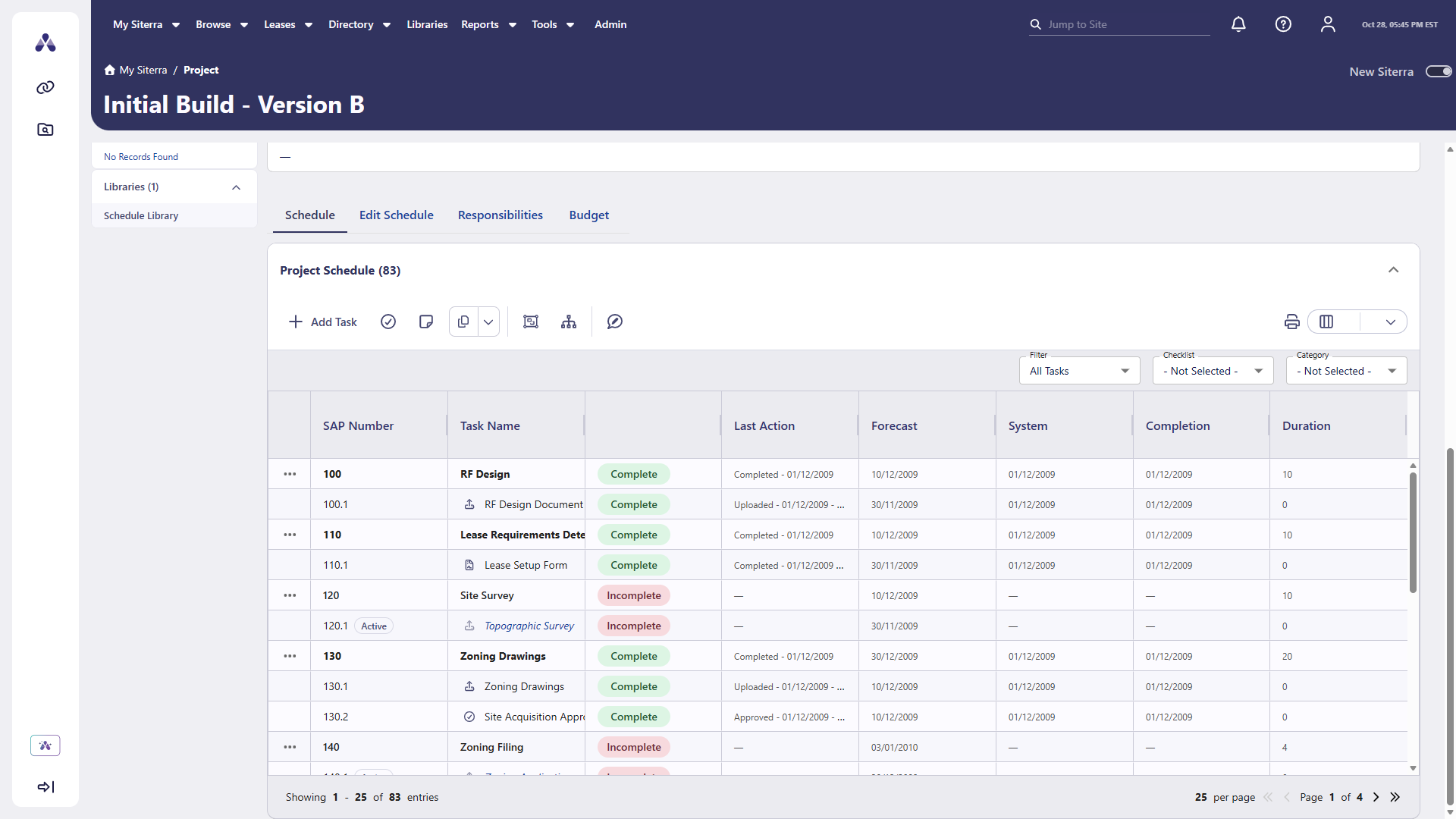
Forms close and your schedule updates when you save
When you save a form task, the form closes for you. The project schedule shows the latest status right away, so you don't need to reload the page.
-
Select Save and Complete to save your data and complete the task. The form closes, and the Schedule tab updates to show the completed task.
-
Select Save and Close to save your data and close the form. The task keeps its current status, so you can come back to it later.
If the form doesn't save, it stays open with your data, so you can try again.
View incident activity
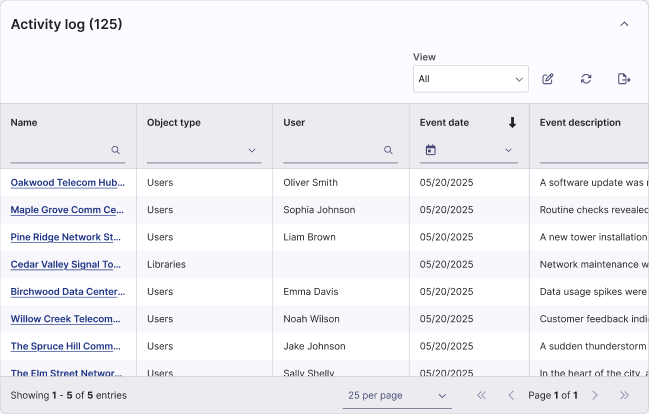
The Incidents page now has an Activity Log grid. It shows the changes made to the incident you're viewing, the user who made them, and the timestamp.
-
Expand or collapse the grid.
-
Select Refresh to see the latest records.
-
Select Export to download the records.
New changes can take up to 3 hours to show up in the log.
Save and reuse advanced searches
You can now save your search criteria on the Advanced tab of the Search page in new Siterra. Run the same search again later without entering each detail.
Save a search
-
On the Search page, select the Advanced tab.
-
Enter your search criteria.
-
Select Save search.
Your search now appears in the Saved searches list.
Use a saved search
In Saved searches, select the search. Siterra fills in the criteria for you, including:
-
What to search and where to search from.
-
Standard attributes, with each attribute, condition, and search term.
-
Extended attributes, including fields that depend on them.
-
Roles and users.
Select Clear all to clear the criteria. Your saved search stays in the list, so you can use it again.
Improvements and issues fixed
|
Component |
Summary |
Reference # |
|---|---|---|
| Libraries |
The Site Libraries page now looks and works like other pages in new Siterra. Grids, toolbars, and menus are cleaner and easier to read. |
SP-60305 |
| Libraries |
You can now select a document name on a library page to open it. |
SP-60412 |
| Libraries |
You can now delete a saved search from a library's filters pane. Administrators can also delete portfolio searches. |
SP-60417 |
| Schedules |
The Schedule tab now has Filter, Checklist, and Category lists to help you focus on the tasks you need. |
SP-60438 |
| Terminology |
Siterra now treats common ways of writing "not applicable," such as N/A and NA, as the same value. Searches and filters find every matching record. Pages show the label your organization uses. |
SP-59189 |